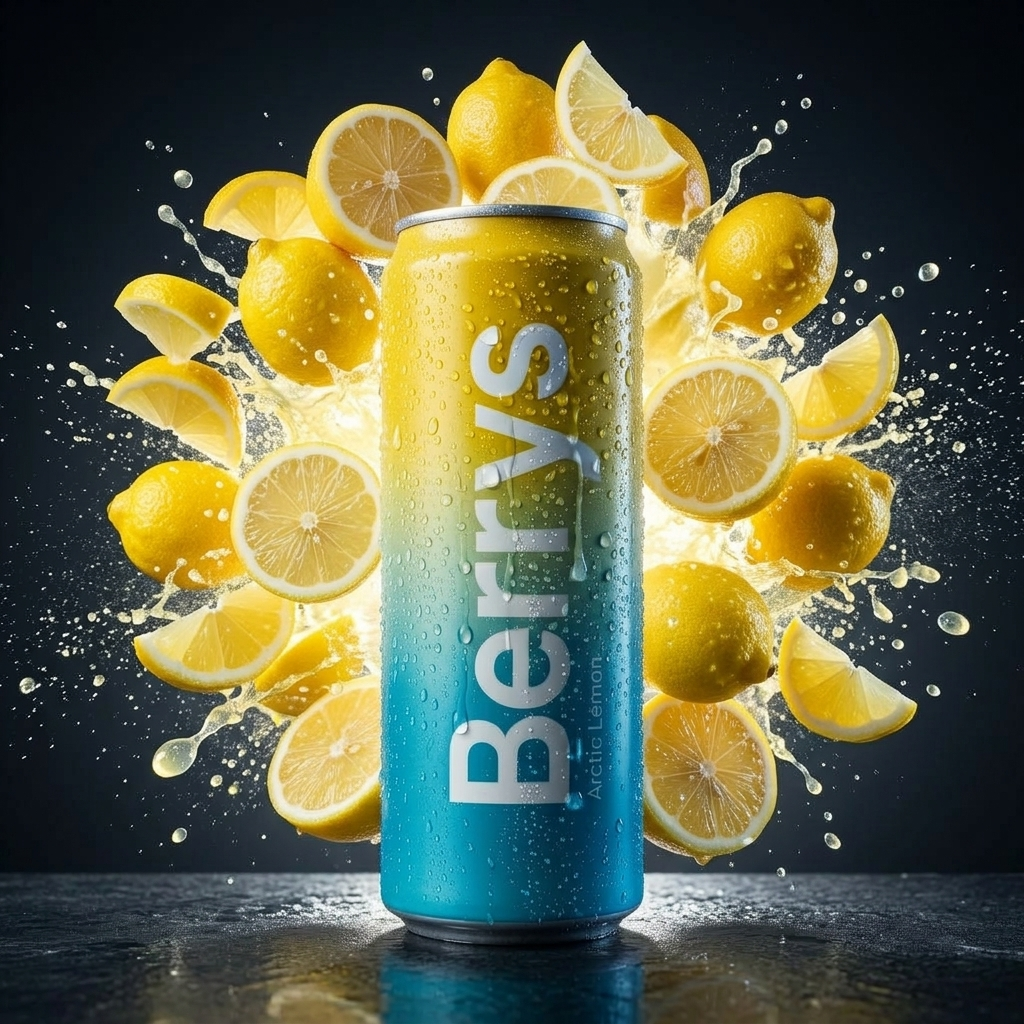
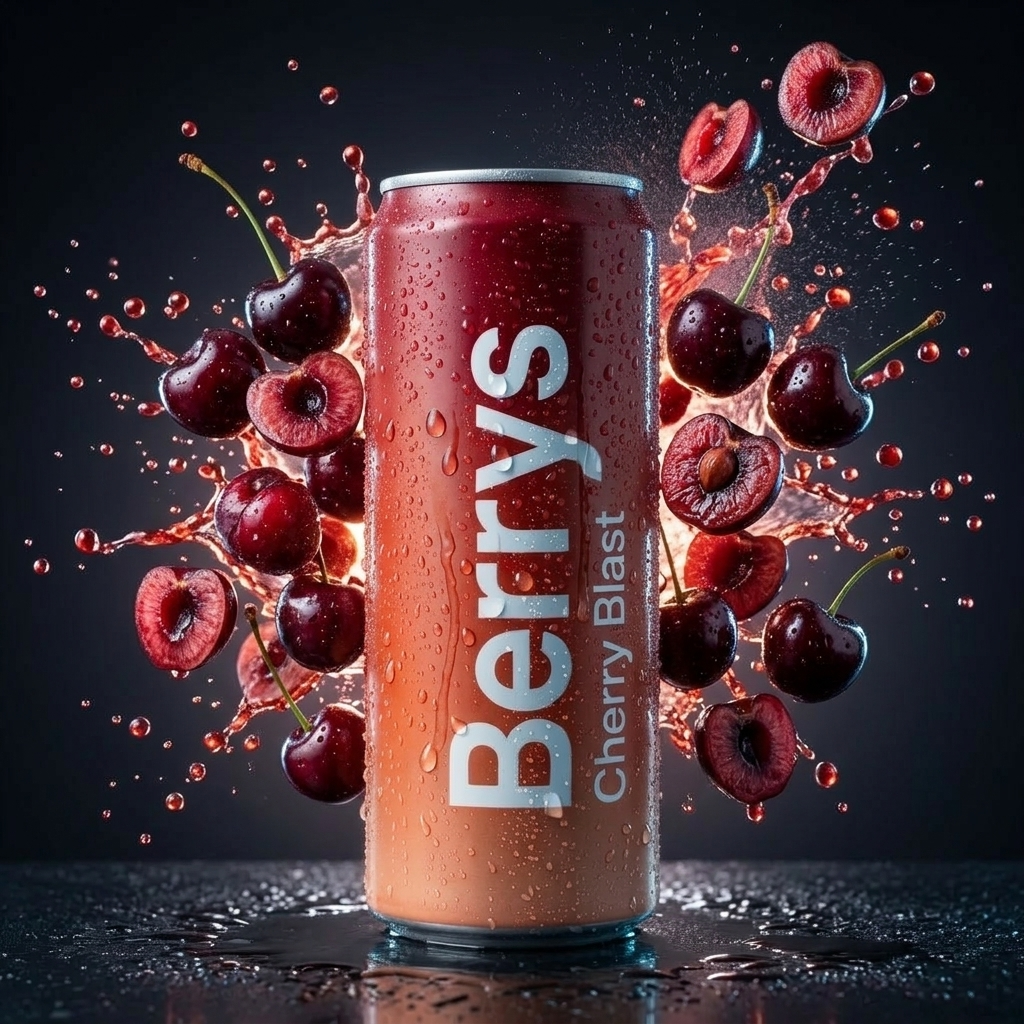
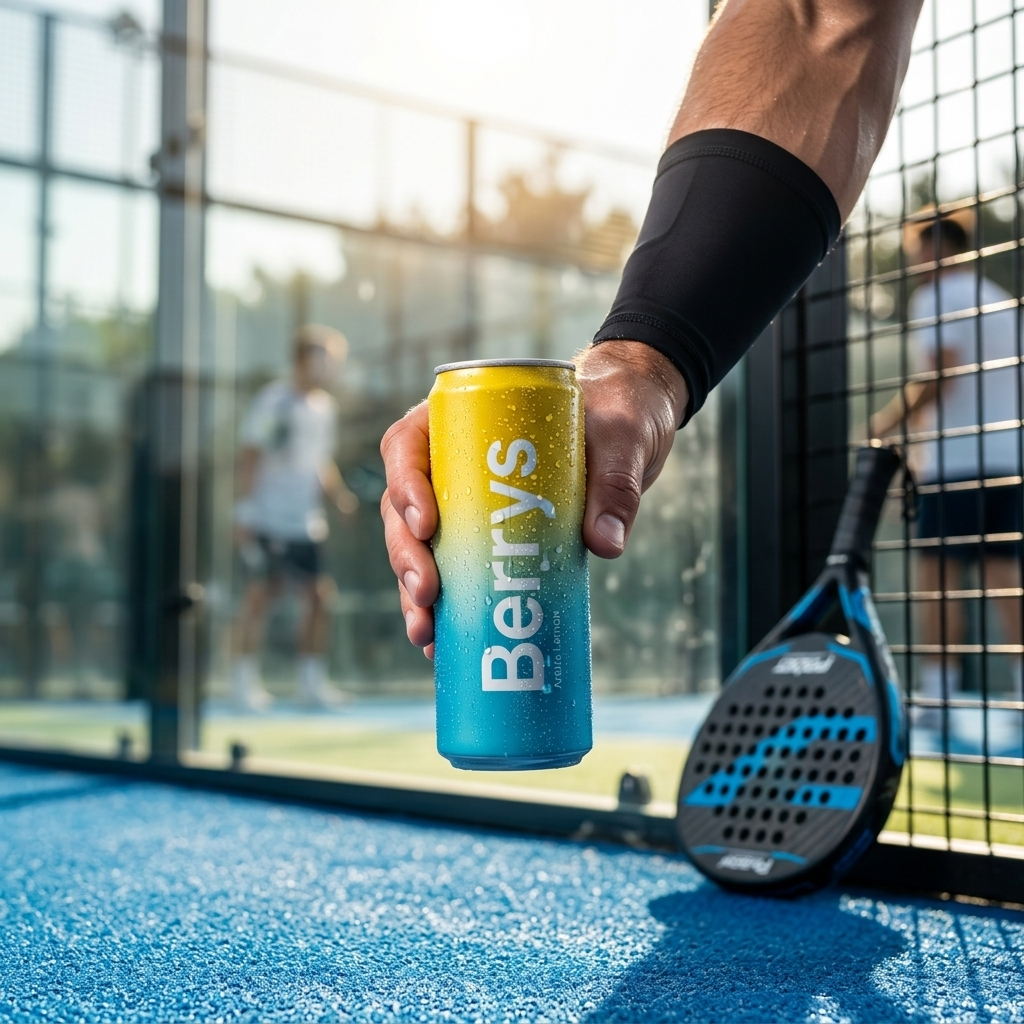
Product campaigns
From one product to a campaign.
Build flavour shots, lifestyle scenes and motion from one creative direction.
Try it with your product
Berrys Plugins
Bring your brief and product references to the AI agent you already use. Berrys turns the conversation into images, video and audio on a canvas you can keep editing.
Connect your agent
Choose your agent to see its setup steps. Every guide uses the same Berrys server URL.
Open Customize → Connectors in Claude, then choose + Add → Add custom connector.
Name it Berrys, paste the connector URL and use OAuth with automatic client registration.
Sign in to Berrys and enable the connector in your chat.
https://app.berrys.io/api/mcp
Your plan or workspace may require an owner to add a custom connector.
“List my Berrys projects.”
What your agent can do
Use your agent for the brief, then review and continue the work in Berrys.
From product references to finished creative. Choose a direction, review the exact cost, then let your agent bring it to life.



Add and connect nodes, tidy the layout and keep the whole project editable.
Set up and review Brand DNA in Berrys first. Ask your connected agent to use a saved brand with your product references.
Plan listing images, detail pages, lifestyle shoots, ad banners, carousels and short product clips. Review prompts, references and costs before generation.
Work with existing projects and undo an agent run when you want to try again.
A little inspiration
Copy a prompt, then adapt it to your own product and references.
Build flavour shots, lifestyle scenes and motion from one creative direction.
Explore studio, editorial and detail shots that belong to the same collection.



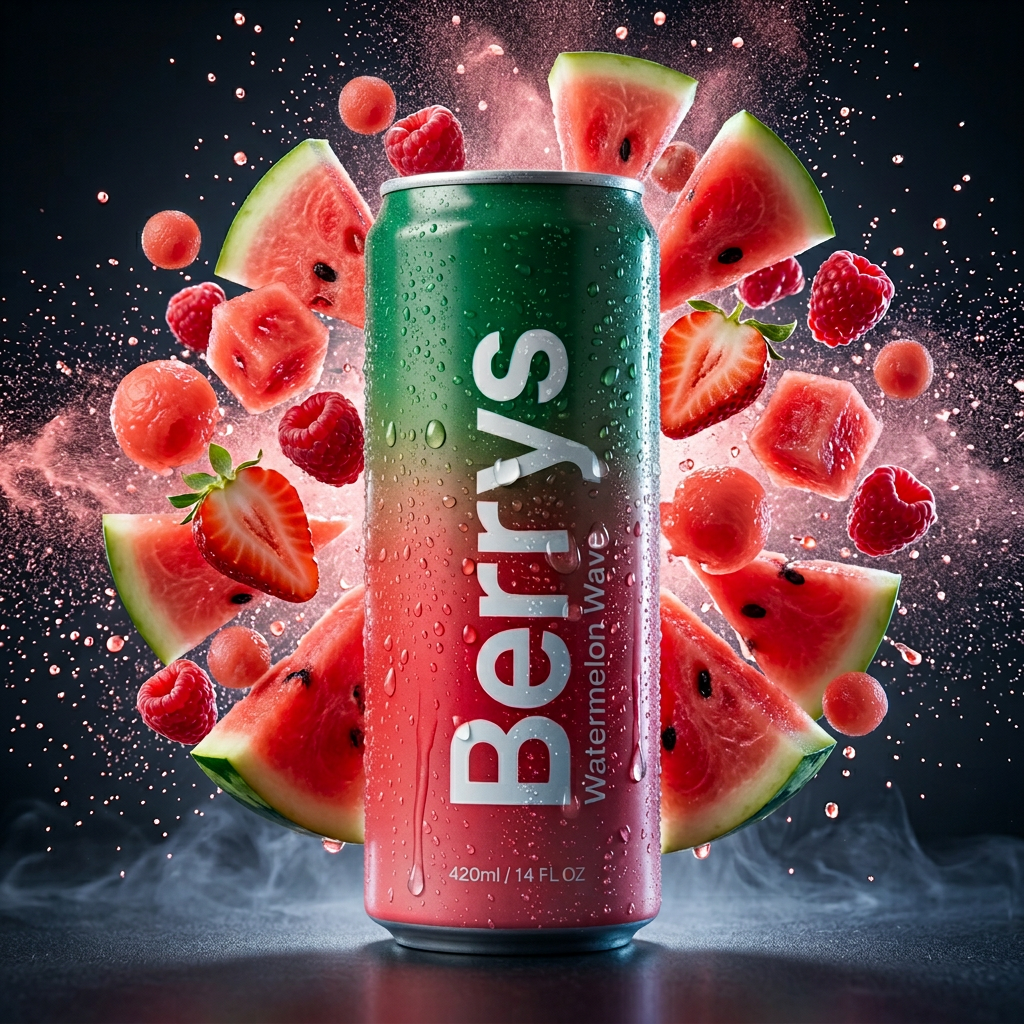
Turn a product reference into a cohesive set of campaign images.
Illustrative outputs from Berrys templates. Your results will depend on your references, prompt and chosen model.
Good to know
Upload a website or guideline in Berrys Brand Memory, review the draft and save it. Your connected agent can then use a selected saved brand. Brand extraction and saving take place in Berrys. Full brand rules must fit the generation prompt; your agent will explain when they need review.
The ChatGPT plugin is being prepared for submission. Use the custom connection instructions below where your account supports them. An installation link will be added after publication.
Connect your AI agent to Berrys to create product images, campaign assets and short clips. Plan and approve in chat, then continue in Playground. Connections use MCP and Berrys sign-in; client features vary.
Viewing and editing the canvas is free. Generation uses your Berrys credits. Your agent shows the exact cost and waits for your confirmation in chat before submitting a paid run.
Setup guides cover Claude, ChatGPT, Codex, Claude Code, Cursor, Grok Bot, Gemini CLI and Hermes. Other clients need remote Streamable HTTP and OAuth support. Custom connector access and inline previews depend on your client and account.
Yes. Sign in with your Berrys account to access the projects you already have permission to use. Your agent follows your existing viewing and editing rights.
You can undo an agent run, and canvas snapshots can restore the whole canvas. Manage or revoke a connection in your Berrys account under Profile → Connected apps (app.berrys.io/profile?tab=connections).
Your next idea starts here
Connect your agent, choose a project and try a free connection check by listing your projects.
See setup steps